
We’ve released a minor update. It is free for licensed SDScribe™ 2025 users, and you can either update the program when reminded (on program startup), or from our existing customers page.
Among the changes:
SDS browse list, “Update version-revision-issued info” (“Misc” drop-down menu). This new option allows you to update content that appears at the bottom of the “16 Other” tab on the SDS entry form. You can:
Change the issued date and/or the printed date fields, by:
Copying the date from certain update source fields on the same SDS (created date, modified date, last build date, etc.)
Manually entering a custom value.
Clearing the field(s) of existing content.
Add or clear version, revision, and/or supersedes field content.
You will still need to rebuild the SDS (click the SDS button in the Build section on the entry form) before the changes appear on the generated SDS.
The program will display an “Update ‘other’ items…” dialog. Selecting “Last build date (either)” from the drop-down menus will take the English-language SDS build date first (if not blank), followed by the non-English build date (if not blank). If both are blank, the program will insert a blank date.
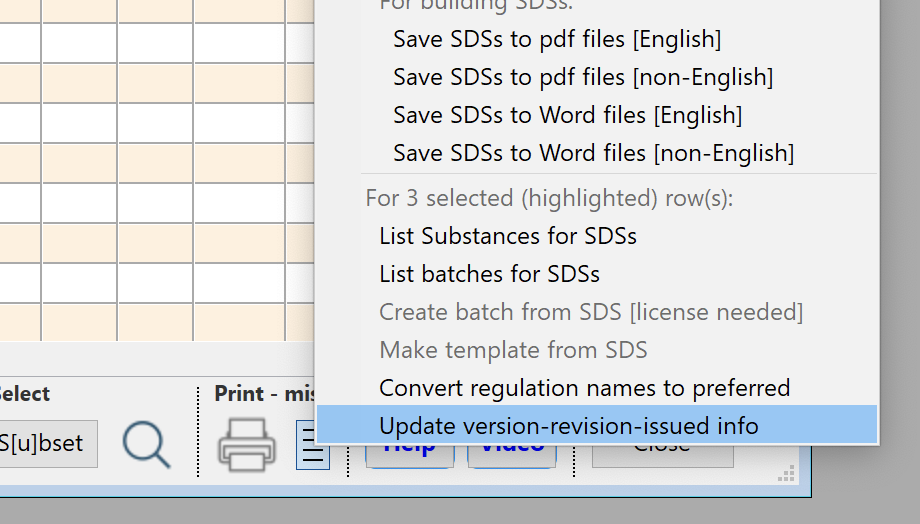
Selecting “Update version-revision-issued info” from the “Misc” drop-down, for one or more SDSs listed in the browse window.
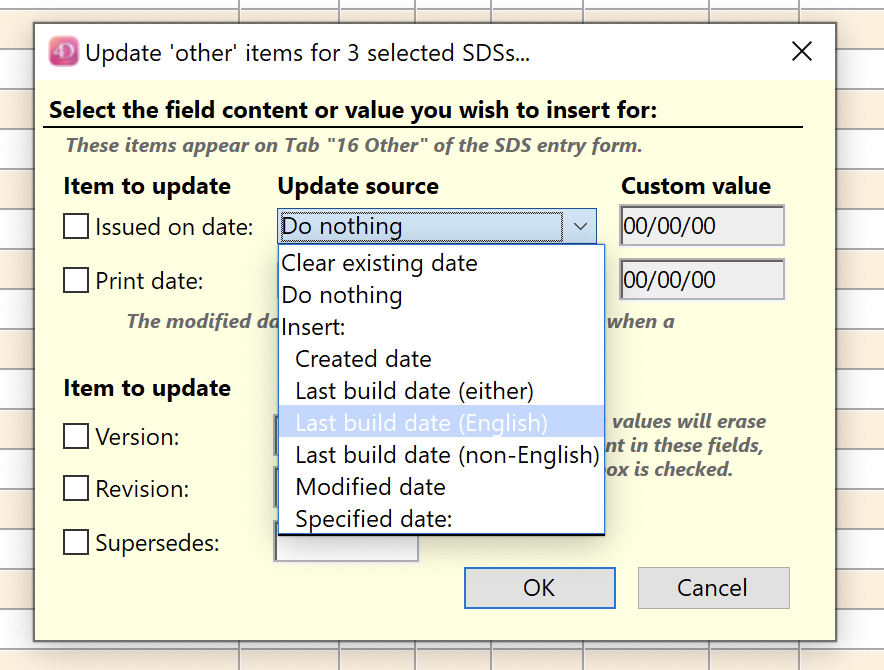
Selecting the source field(s) from which to update the “Issued on date”.
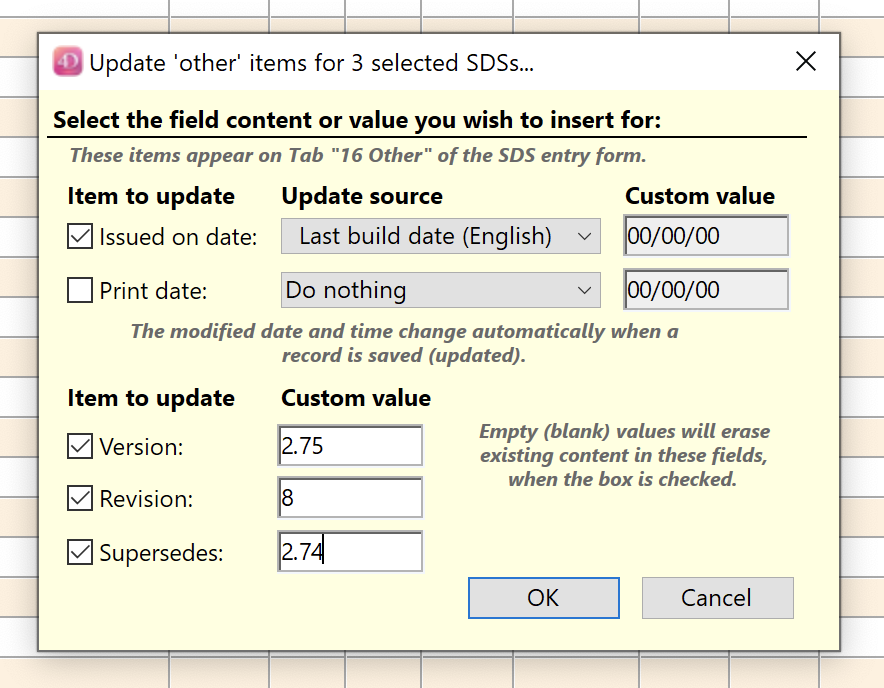
Updating selected SDS fields on the “16 Other” tab of the SDS entry form, using the “Update ‘other’…” dialog, “Misc” menu, SDS browse list.
Preferences, “Default paper size for word processing areas” ( “Other settings” tab). This new option sets the paper size to either “A4” or “Letter” (US letter), for printing. If the drop-down menu is blank, the default is “A4”. Previous versions of the program defaulted to “A4”, but your selected Windows print driver may also influence this setting
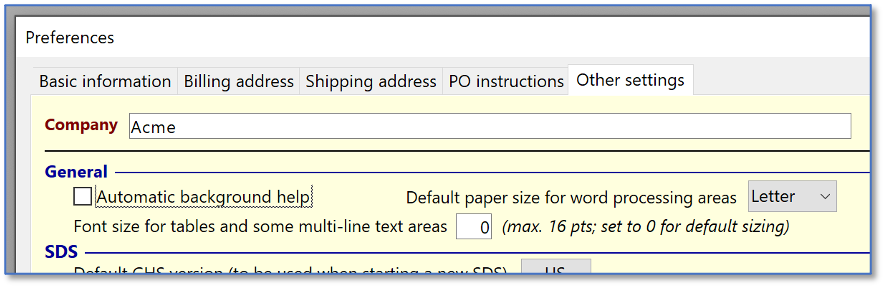
Preferences dialog (from File menu -> Preferences), “Other settings” tab, showing new option to select letter-sized paper when printing from word processing areas. The default is A4-sized paper.
SDS entry form, Water hazard class (WGK) rationale (SDS “12 Ecological” tab, “Suggest” link). Previously the program generated the rationale for the WGK designation in styled text, which the dialog was not capable of displaying properly. The program now generates the rationale in plain text. For previous entries in styled text, a box can be checked for conversion to plain text.
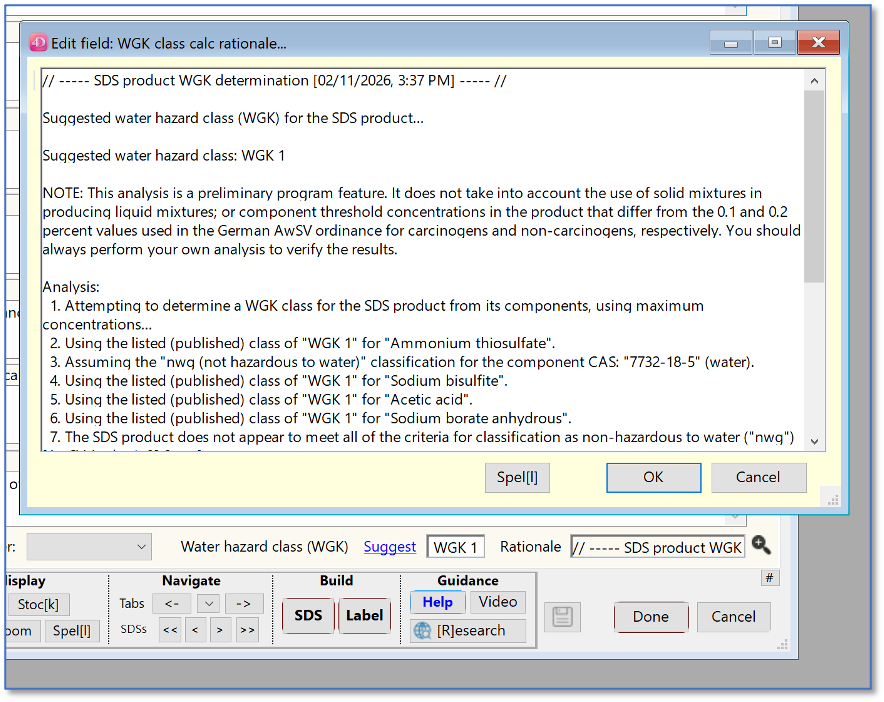
Zoomed content of the WGK “Rationale” field, in plain text.
SDS browse list, certain right-click (contextual menu) selections. Certain options in the contextual menu will now be disabled if more than one row is highlighted in the SDS browse list. Previously, the items would be enabled, but would only act on the first item listed.
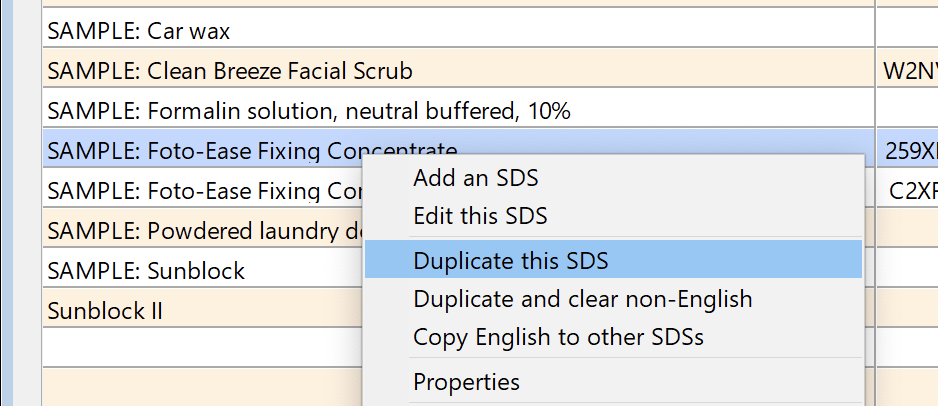
Certain items in the SDS browse list right-click (contextual) menu will now be disabled if more than one row is highlighted (e.g., “Duplicate this SDS”).
SDS browse list, “List Substances for SDSs”. When right-clicking on one or more SDSs in the browse list, this option will now display the Substance records corresponding to components of a mixture, as well as a Substance linked to the SDS product itself. Previously, this option displayed only a Substance linked to the SDS product itself, which usually occurs when the SDS represents a pure chemical rather than a mixture.
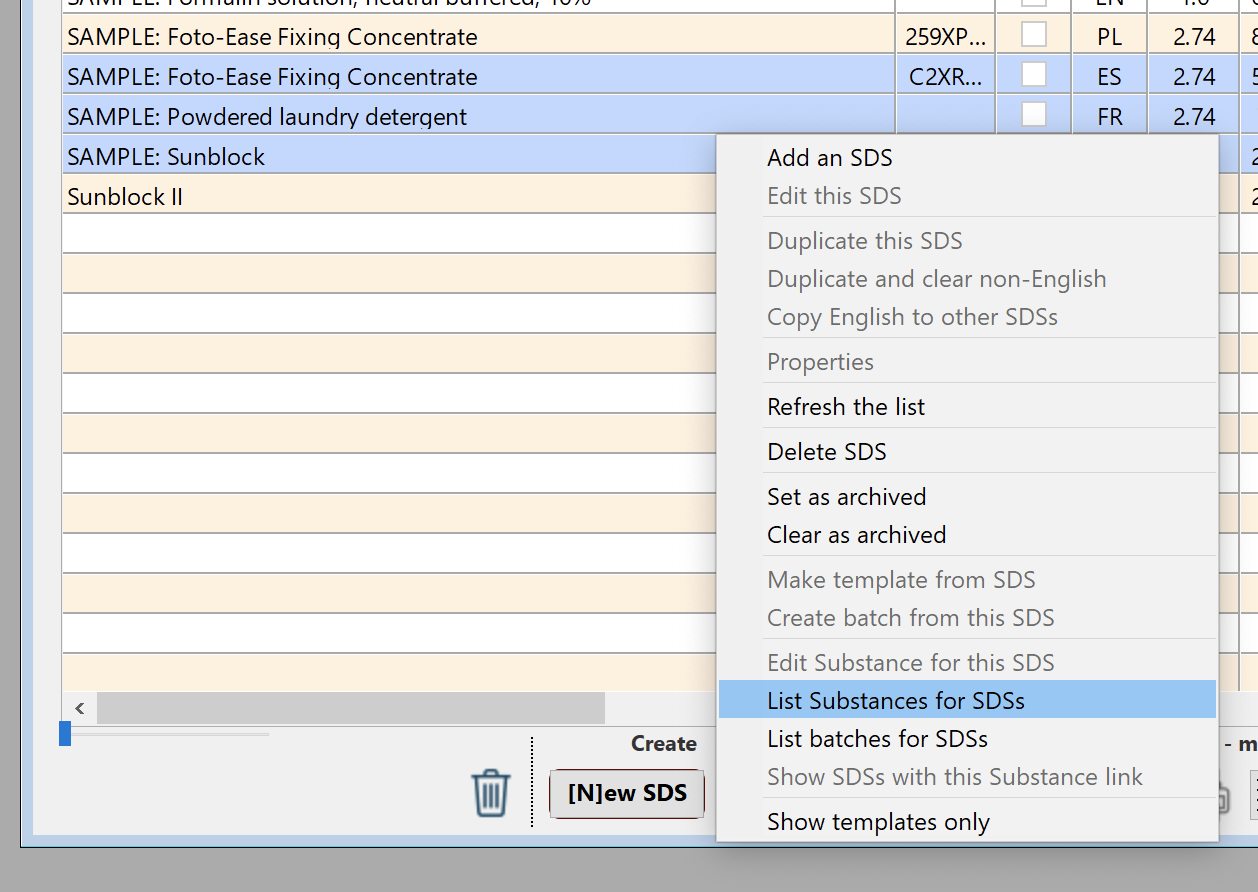
“List Substances for SDSs” will now display Substance records for the components (ingredients) of the SDS products. Previously, the program only displayed Substance records directly linked to the SDS product itself.
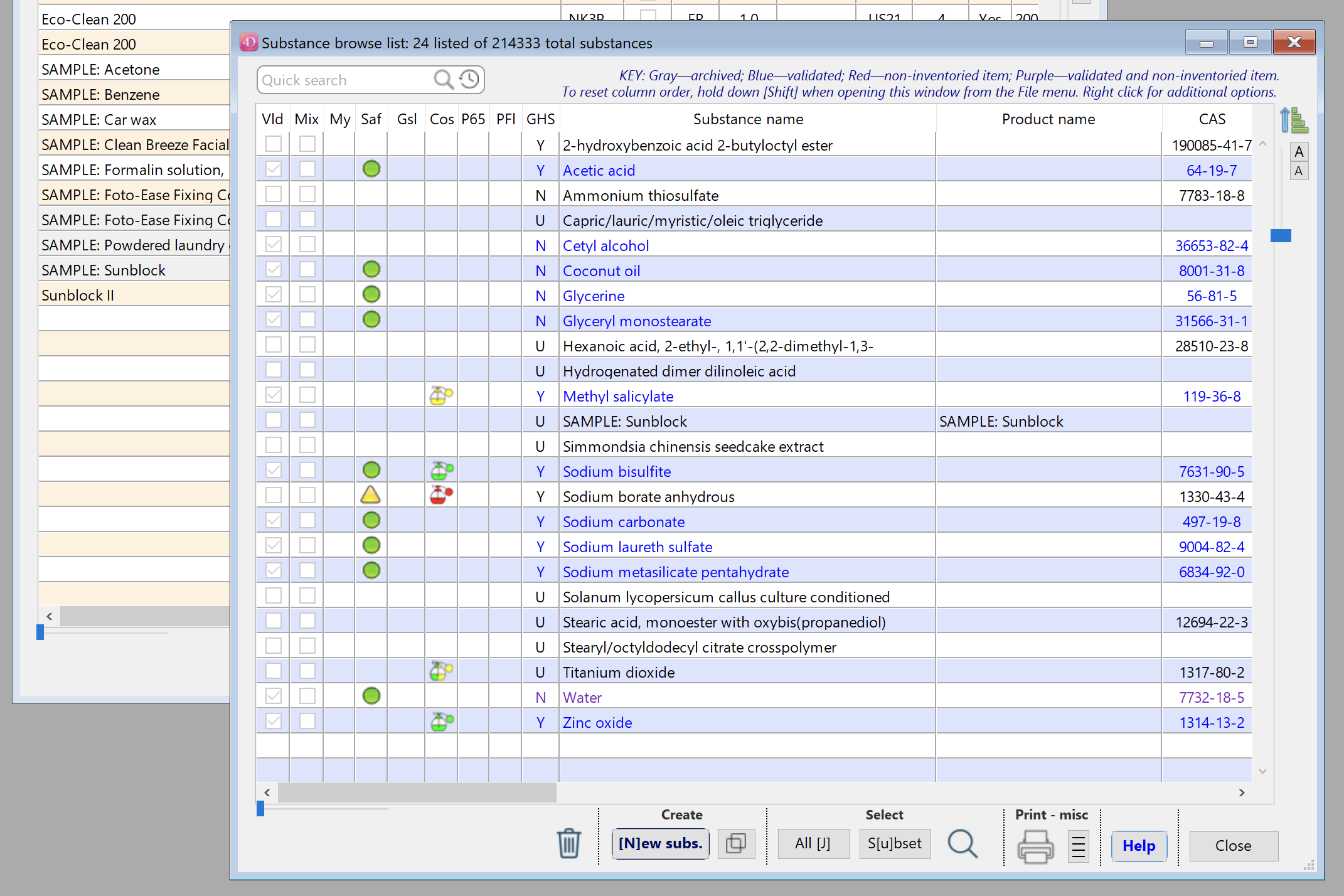
Displaying the Substances linked to three SDSs highlighted in the SDS browse window (behind the Substances browse window). The linked Substance records now include components (ingredients) listed on the SDSs.
Australian Inventory of Industrial Chemicals. A new import is available, from Jan. 9, 2026. The program will offer to import at start-up, but you can import at other times by navigating File (menu) -> Imports-exports and utilities -> Review imports (button).
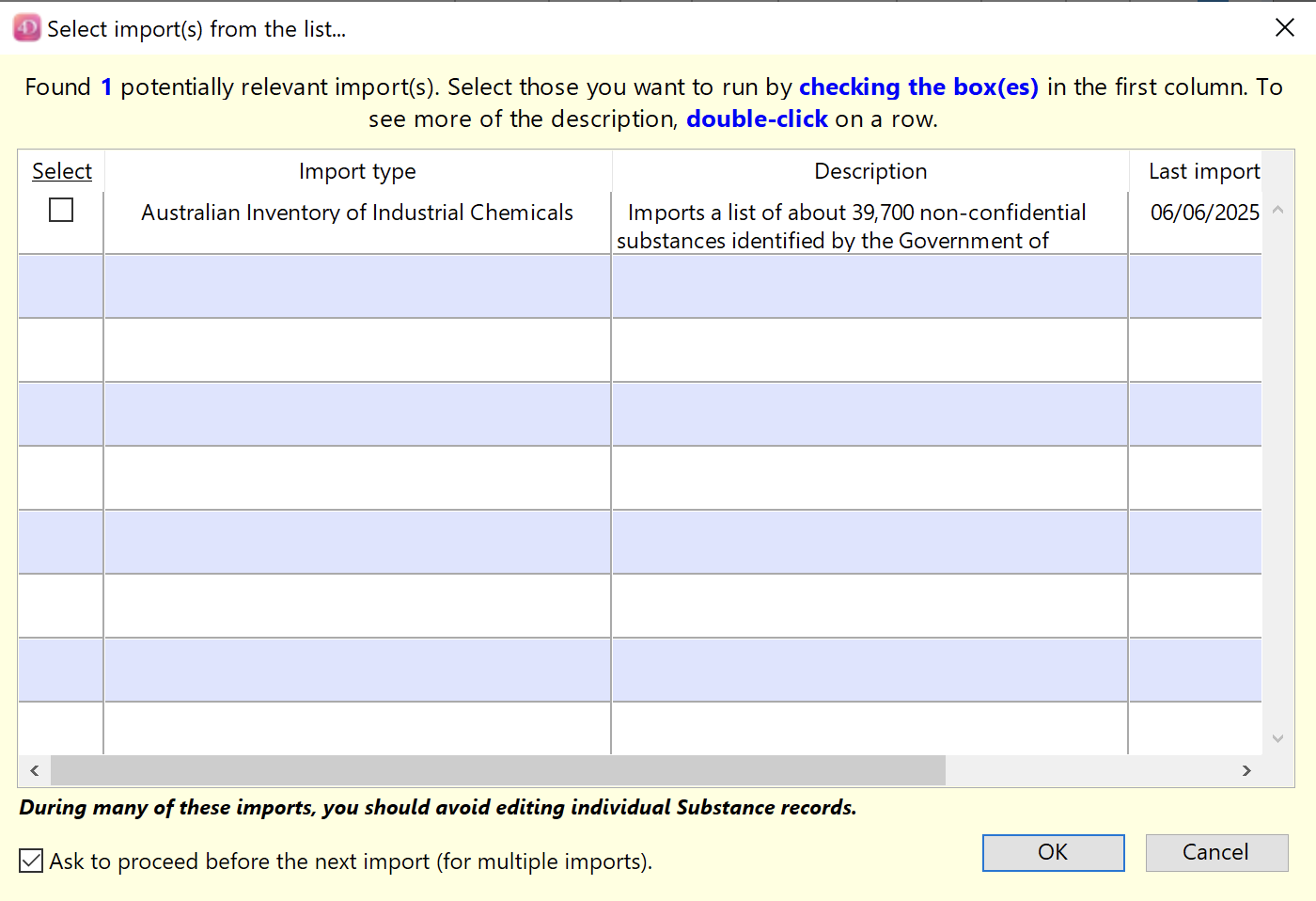
New import of Australian industrial chemicals, shown in the “Select import(s)…” dialog.