
[Released 6.3.2026]
The 2026 version of SDScribe™ (v. 12.10) is now available on the web site, as a paid upgrade from earlier versions of the program. (If you just purchased SDScribe™ recently, contact Hazard Solutions to see whether you are eligible for a complimentary upgrade.)
Some of the new features in the program:
Build SDSs from the browse list — Users can now build (generate) SDSs from the browse list, for a batch of SDS records.
In previous program versions, building an SDS was only available by clicking on the SDS button on the entry form, and selecting either English or the non-English language selected for the record.
Now the option is available for listed records by selecting “Build SDS [English]” or “Build SDS [non-English]” from the “Misc” menu on the SDS browse list.
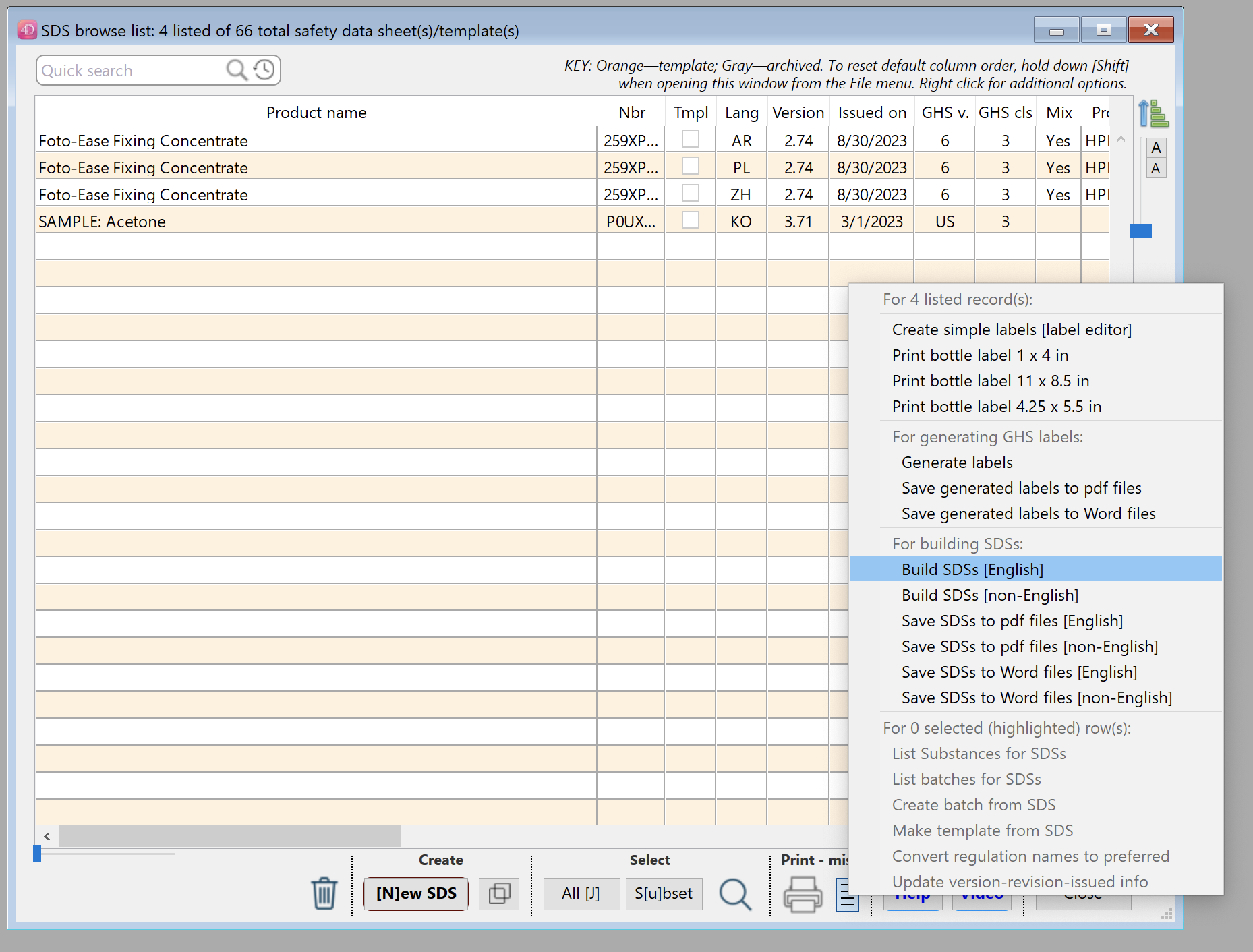
Building SDSs from the browse list, for the listed records.
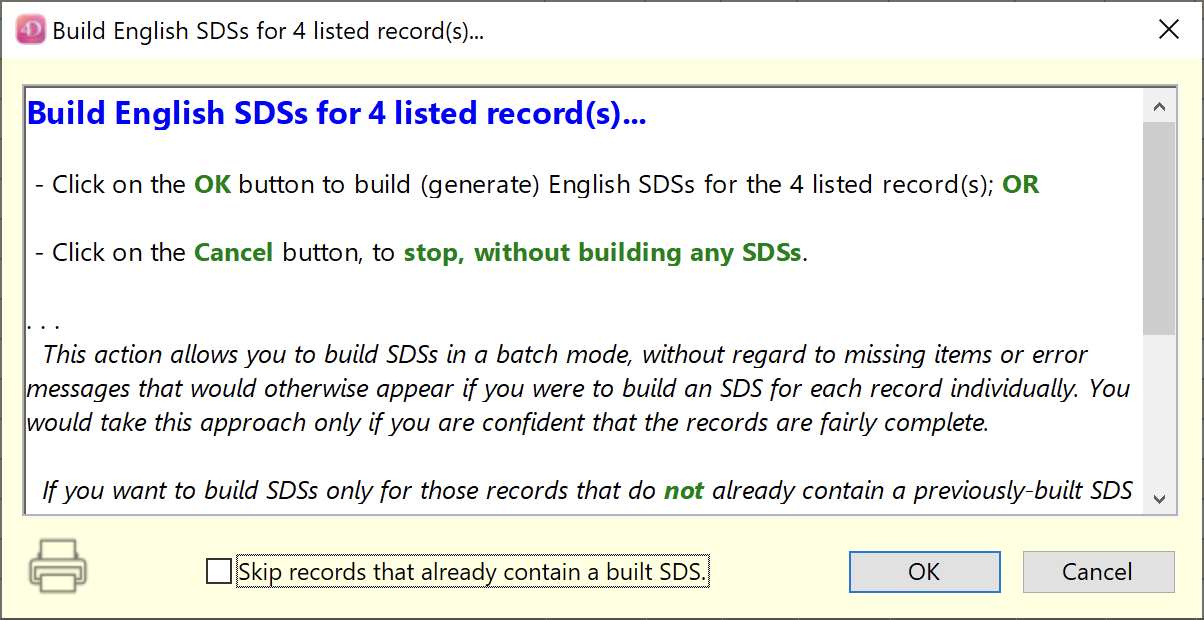
Dialog confirming that the user wishes to build (generate) SDSs for the 4 listed records in the browse window.
There isn’t a specific limit to the number of listed records for which you can build the SDSs. However, the program does not provide the same diagnostics that are available when creating SDSs individually, from within the entry form.
The batch SDS build functionality is likely to be most useful when you have made a few, relatively minor updates to several SDSs, or when you desire stylistic changes (fonts, section header colors, tables instead of lists, etc.) for several SDSs. The program presents the same “Select SDS generation options” dialog that appears with the individual SDS build.
New right-click option in SDS browse list — Suppose you want to look for the most recent or the earliest version of an SDS. Right click on a listed SDS, to show all SDS records with the same product name.
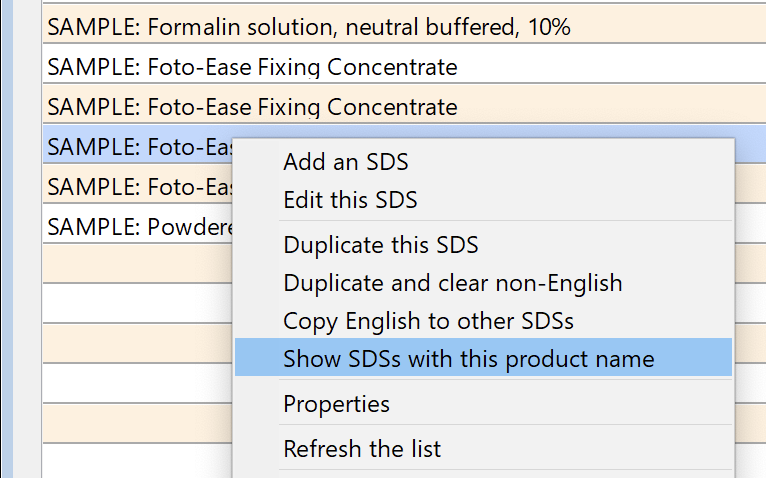
Right-click and select “Show SDSs with this product name” to show all SDSs for a particular product.
Exclude archived items — This is an additional option in the S[u]bset button menu, for the Substance, Batch, and SDS browse lists, allowing you to remove archived items from the current list of records.
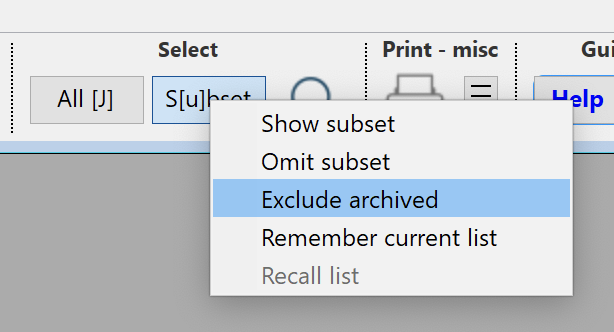
Exclude archived items, S[u]bset menu, Substance, Batch, and SDS browse lists.
Non-English product name — There is now a non-English SDS product name field, as a compliment to the existing English field. It is entirely optional, however, while the English name is still required.
If you are generating a non-English SDS or a non-English GHS label, the non-English product name appears in parentheses after the English product name. The non-English name can contain both Latin characters and non-Latin characters (Chinese, Korean, etc.).
The non-English product name is layered beneath the English product name, in similar fashion to other multi-language fields on the SDS form.
Having an additional product name field may be useful if customers in some markets recognize the product under a non-English moniker.
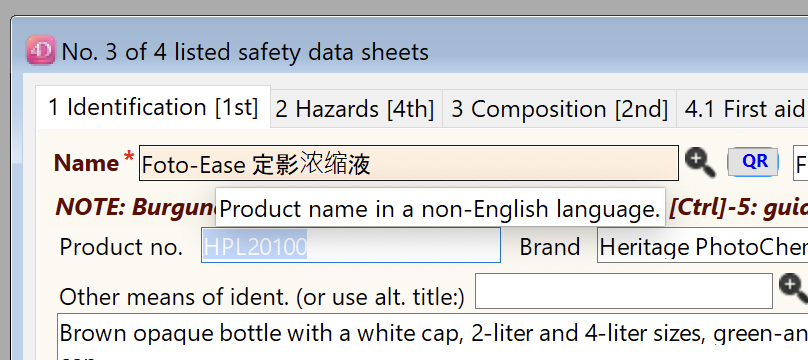
Non-English name field on the SDS entry form, upper left. It is layered beneath the English name, and can be accessed from the “Zoom” button at right (“Show non-English”, “Show both”, or “Zoom non-English” options).
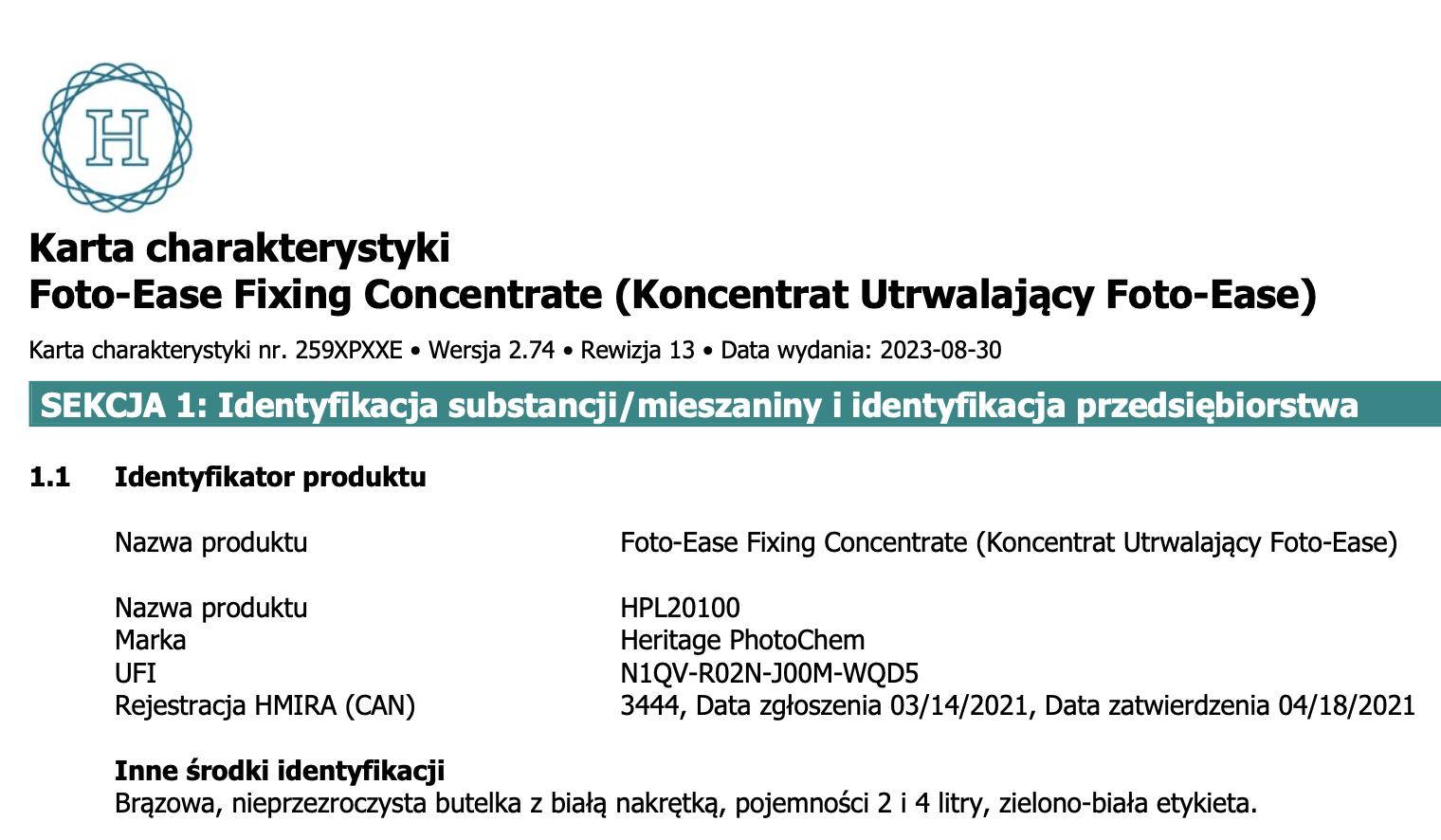
SDS in Polish (partial view), showing the non-English name in parentheses. Example only: information is fictitious.
Non-English Quick search — The logic for the “Quick search” box (SDS browse list) has changed slightly to accommodate the new, non-English product name field.
When the search contains non-Latin characters, the program will do a full, “contains”-type search of fields, as if the user had entered a leading and a following wildcard. This change is needed because the default search (a “starts with”-type search) is not reliable for finding non-Latin characters.
You can override this new behavior by enclosing the search in double quotes, but this is a less-dependable option for finding records with Chinese, Korean, Arabic, or other non-Latin characters.
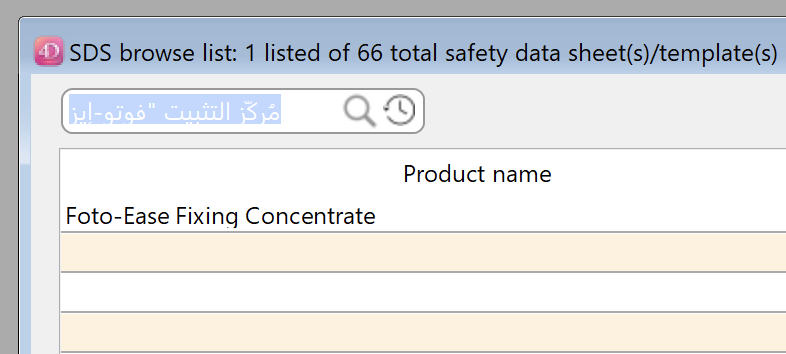
Entering non-Latin characters in the Quick search box results in a full, “contains”-type search instead of a “starts-with”-type search.
NOTE: In similar fashion, when using the built-in Query editor to find non-Latin characters, you should select “contains” for the search type, rather than “is”, “starts with”, or “ends with”. Otherwise, the program may not find matching records.
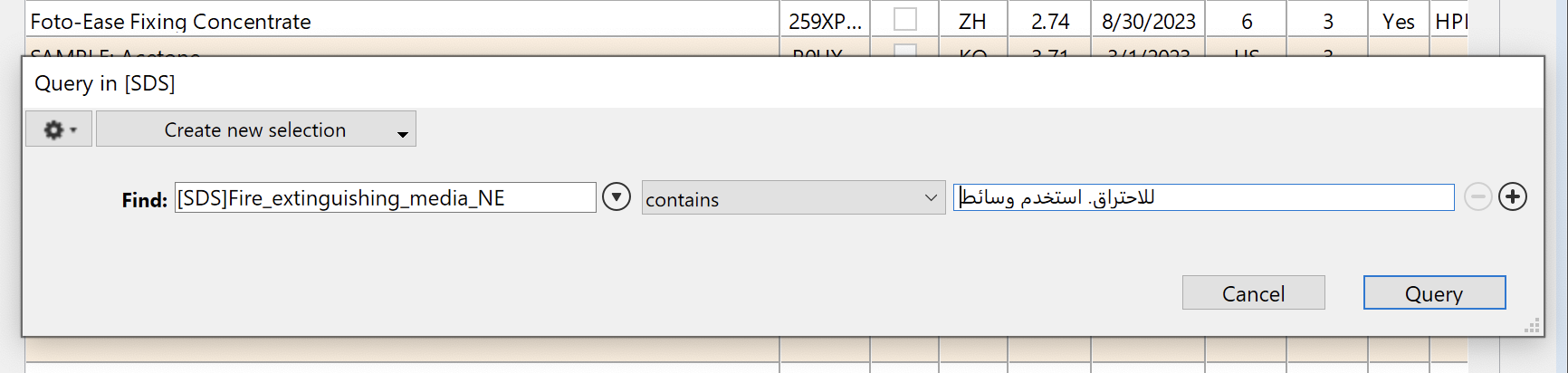
Use of the Query editor for finding SDS records in a non-English field, when the search contains non-Latin characters. The query should use the “contains” option in this case, rather than “is”, “starts with”, or “ends with”.
Arabic license — Arabic is now available as an optional license for SDScribe™. Because Arabic reads from right to left, it was necessary to equip non-English fields to be capable of right alignment and directionality. When the user selects “AR-Arabic” from the alternate language menu, all non-English fields in the SDS record switch from from left text alignment to right alignment, and the cursor moves from right to left (“RTL”) as you type.
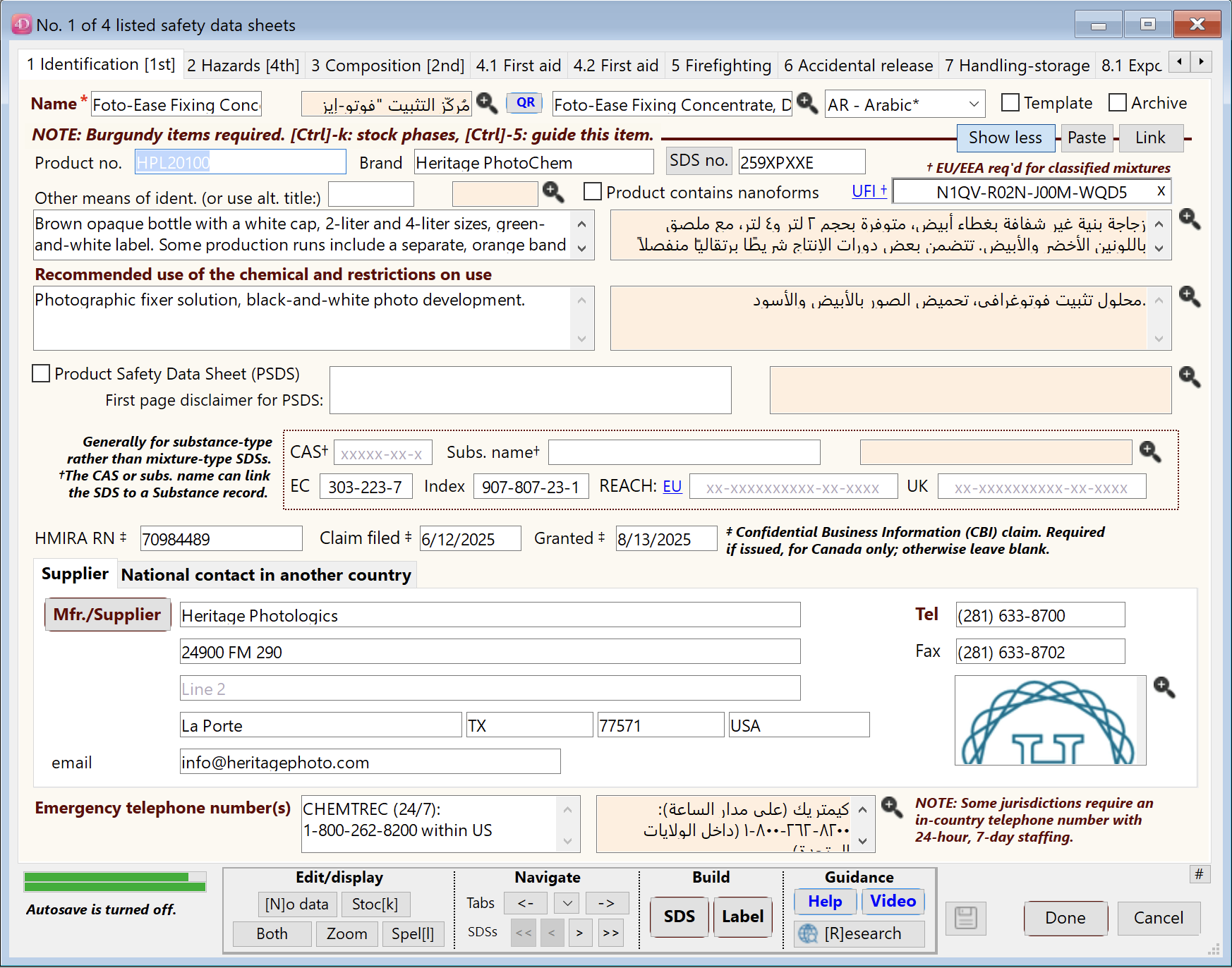
SDS entry form, with the alternate language set to “AR - Arabic*”. All the non-English fields (shown in beige) have switched to right-to-left (RTL) directionality and right-side text alignment.
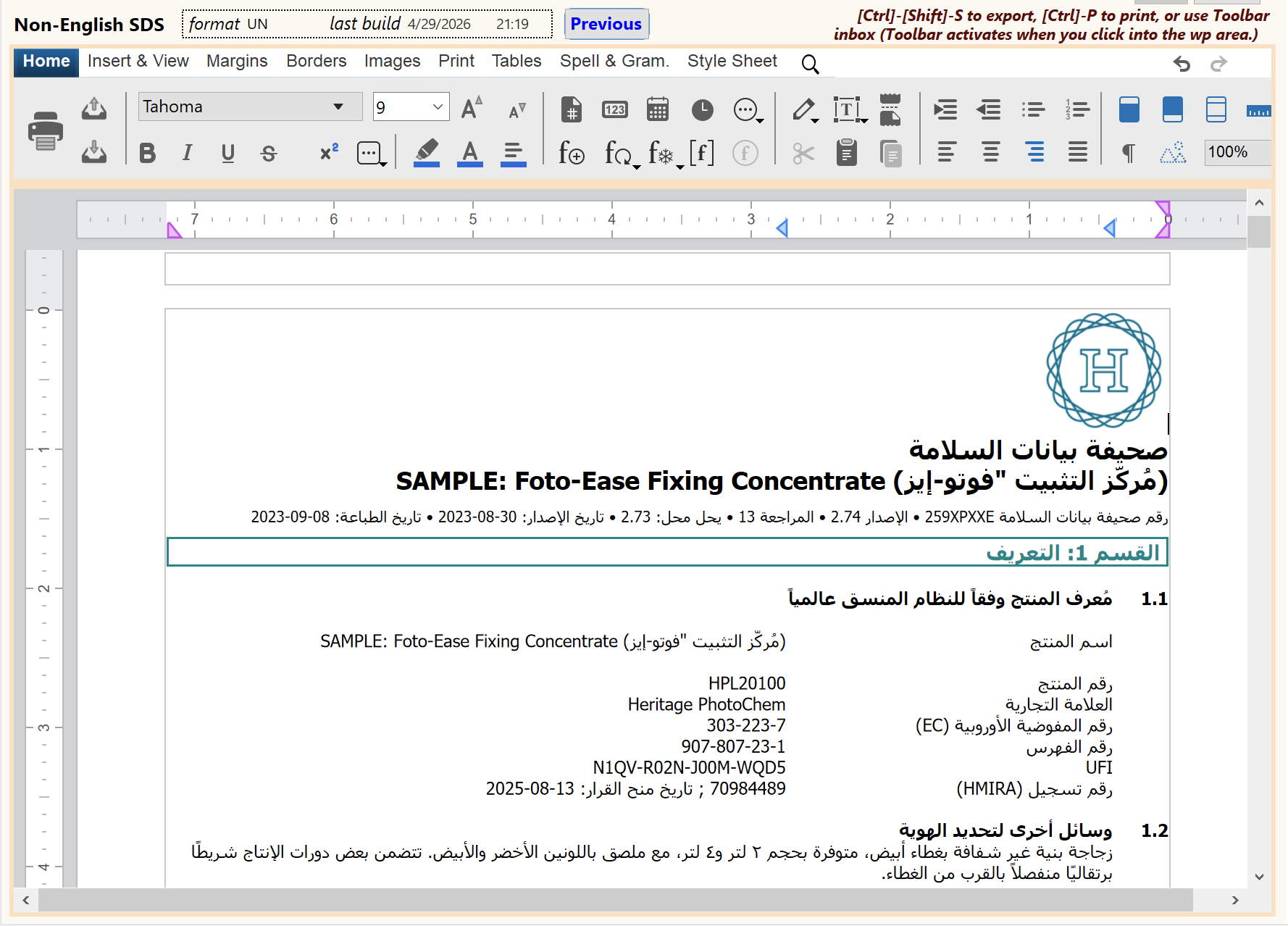
Sample of an Arabic-language SDS (partial view, in word processing area). Details are fictitious.
Because the alternate language can vary with each SDS, the non-English field characterists (left-to-right or right-to-left) can change each time you navigate from one SDS record to the next, using the arrow keys.
Due to limitations associated with the database engine, non-English columns in a table are not directly enterable by clicking, when Arabic is selected as the alternate language. Instead, you double click on the cell that you wish to edit, and the program will allow you to edit the cell contents in a “zoom” window.
Additionally, the use of some scientific terms may necessitate a combination of English and Arabic in the same phrase. The program uses a bidirectional algorithm to accommodate simulteaneous use of both languages. For additional details, refer to the background help for the SDS tab, “1 Identification” (Subtopic: “Right-to-left languages in fields”).
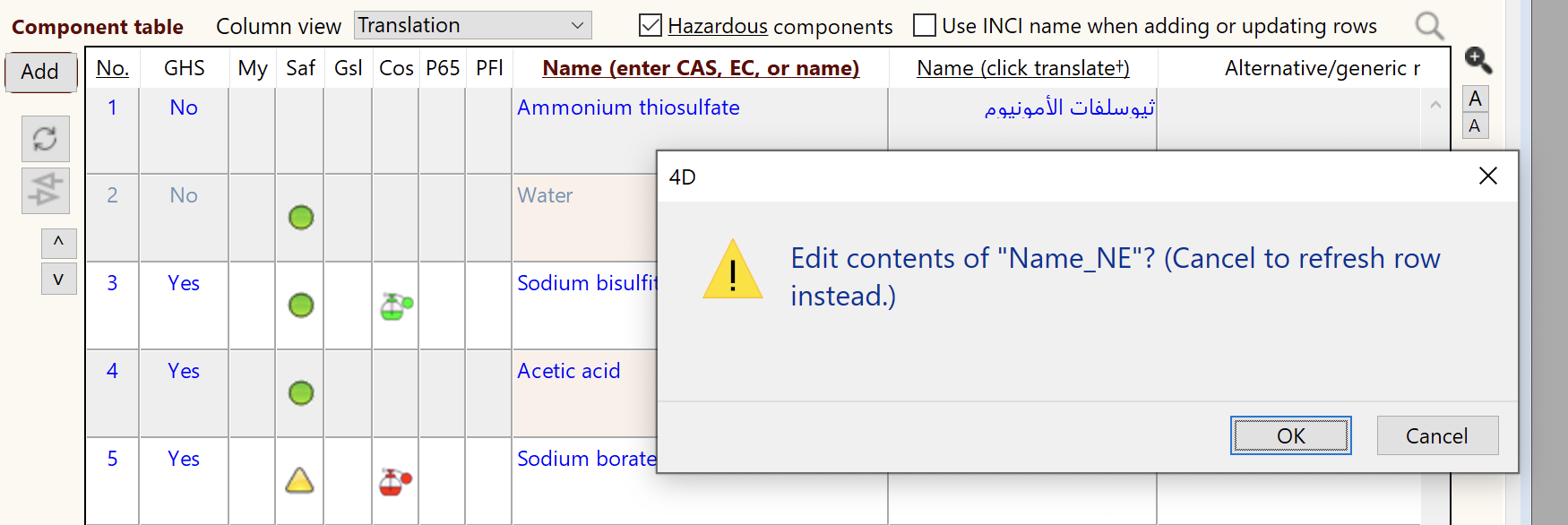
When Arabic is the alternate language for an SDS, double clicking on a non-English cell causes the program to offer to display the text in a “zoom” dialog; there is no direct entry into the table for the non-English columns. (English columns continue to be accessible via single-click entry, however.)
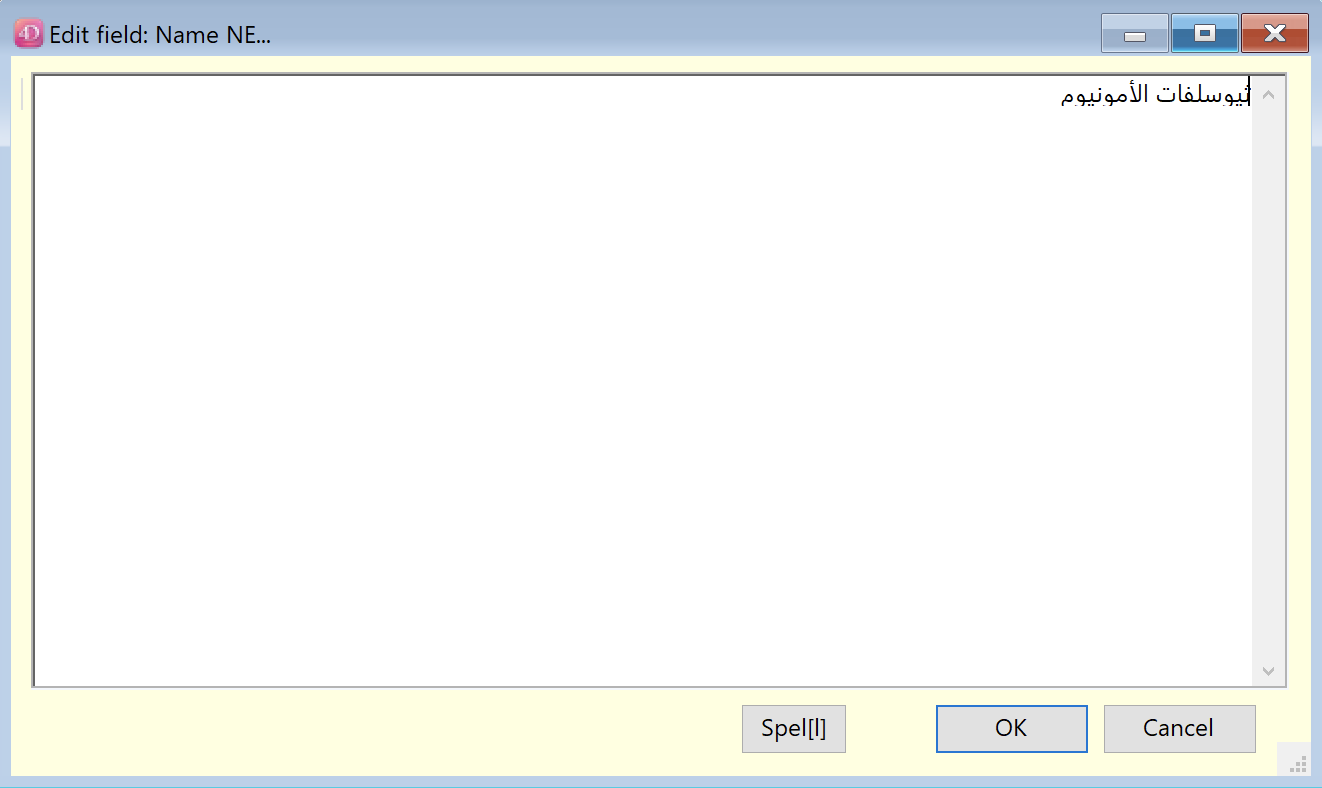
“Zoom” dialog displaying non-English table cell content. Text alignment is on the right and the cursor moves to the left as you type.
NRCC QR code (China) — There is now a “QR” button after the product name, at top left on the SDS entry form. Clicking the button allows you to enter the product registration issued by the China National Registration Center for Chemicals (NRCC). The registration is in the form of a web-type URL containing a unique, 17-digit number.
When you enter the NRCC QR code in this manner, the program can generate the corresponding, scannable QR code on GHS labels (“GHS label” tab on the SDS entry form).
A customer scanning the QR code with their phone will receive additional hazard information about the product.
The “QR” button has blue text and a blue frame when there is content in the QR registration field.
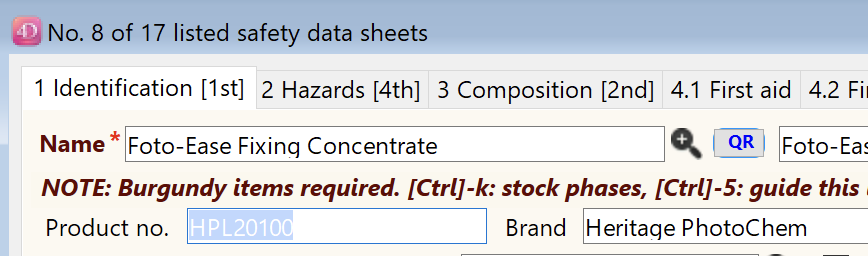
The “QR” button appearing to the right of the product name is for entering the NRCC QR code (a web URL issued by the government of China, unique to each registered chemical product). A blue frame and blue button text indicates that something has been entered into the field.
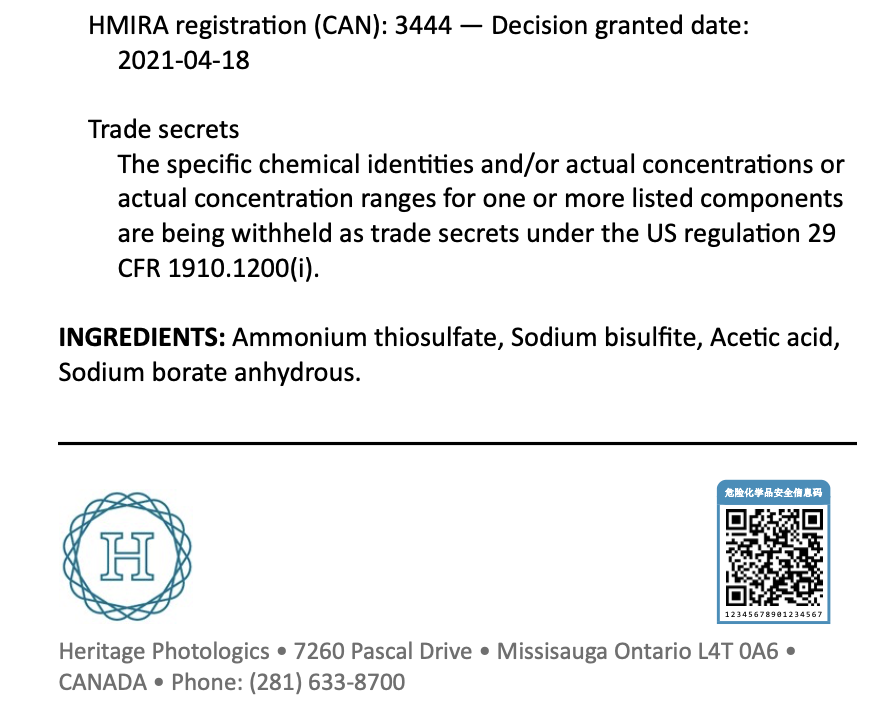
GHS label (partial view), showing bottom portion with (China) NRCC QR code at right. Example only: information is fictitious.
GHS label generation — The options dialog for generating GHS labels now features a summary of content for each label format, and a “preview” pane, so that the user has a better understanding when selecting the label format for generation.
There is also a font size adjustment, or up to 4 points either up or down. A setting of zero (“0”) in this box indicates no adjustment from the default font sizes. (The adjustment in most cases will not go below a 5-point font size.)
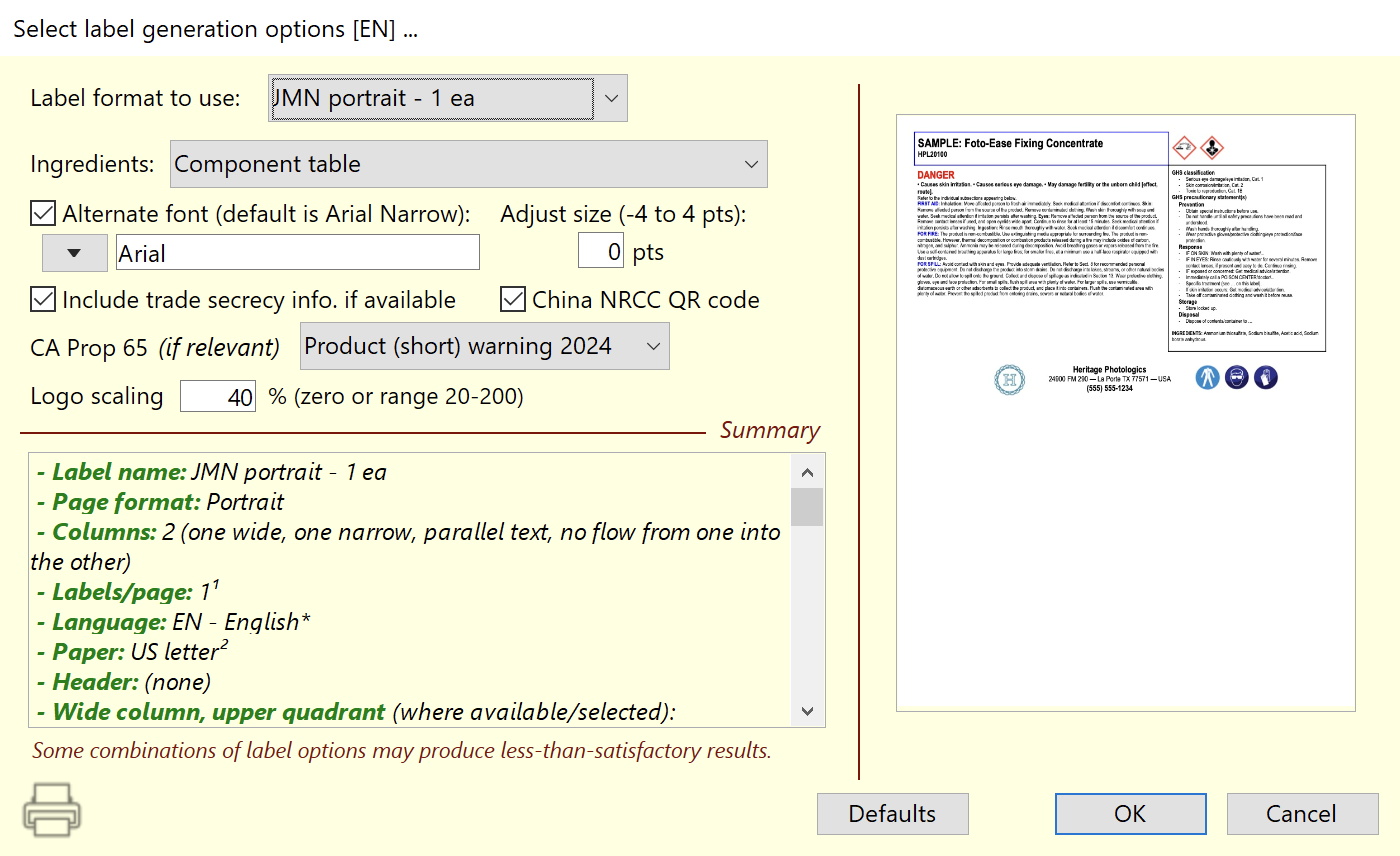
Select label options dialog, for generating GHS labels. The dialog now includes a “Summary” (descriptive) section, plus a “preview” pane on the right.
New regulations selection dialog — Replaces the drop-down menu that formerly appeared when clicking on the Add button (Tab “15.1 Regulatory” of the SDS entry form, and the “Regulatory” tab of the Substance entry form), for placing selected regulations into the Regulations table.
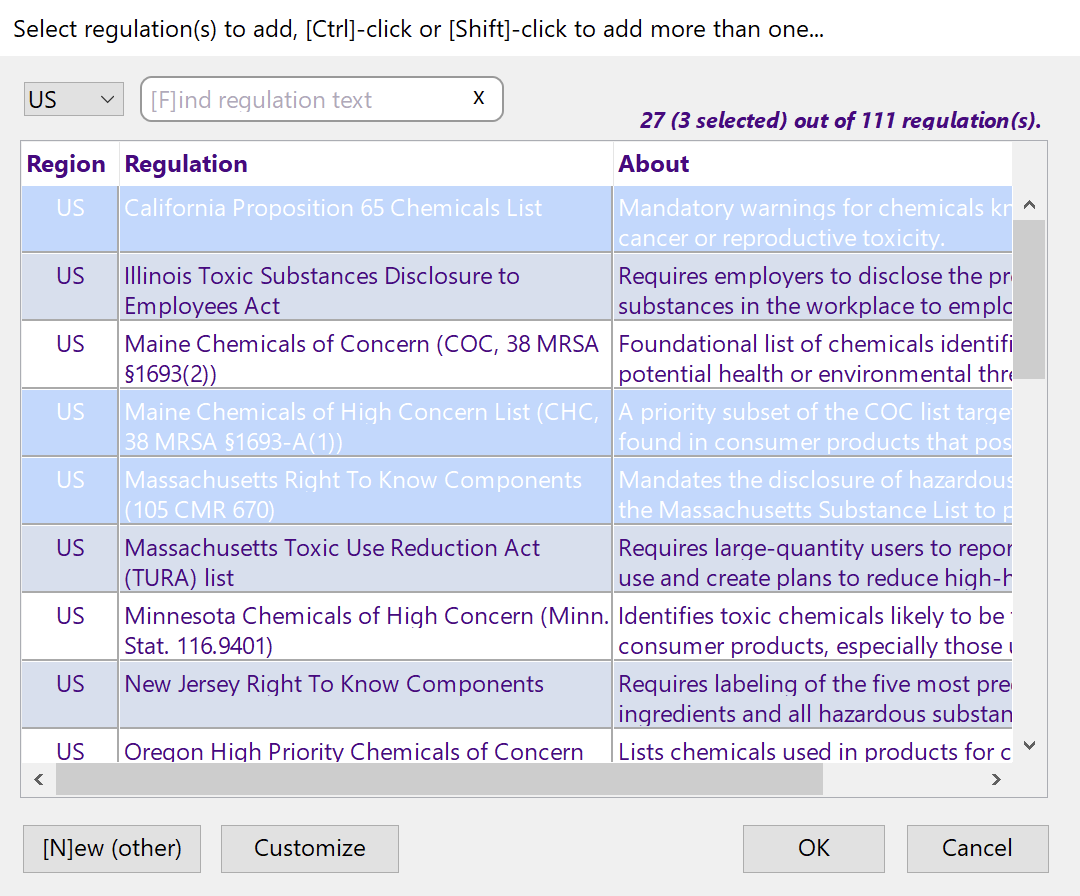
Regulations selection dialog, which replaces the “Add” button drop-down menu, on the “Regulatory” tabs of both Substance and SDS entry forms.
The dialog includes a “Region” (code) column and an explanatory column (“About”). The user can select more than one regulation to add, by [Shift]-clicking or [Ctrl]-clicking on additional rows in the dialog.
Because there are more selectable regulations in this version, the dialog initially displays only US-coded regulations for US addresses (in Preferences); or CA-coded regulations for Canadian addresses. However, if there are any regulations coded as “FV” (as in “favorite”), then the dialog will initially display only those “FV”-coded regulations; this provision allows the user to build a set of favorites across different regulatory jurisdictions.
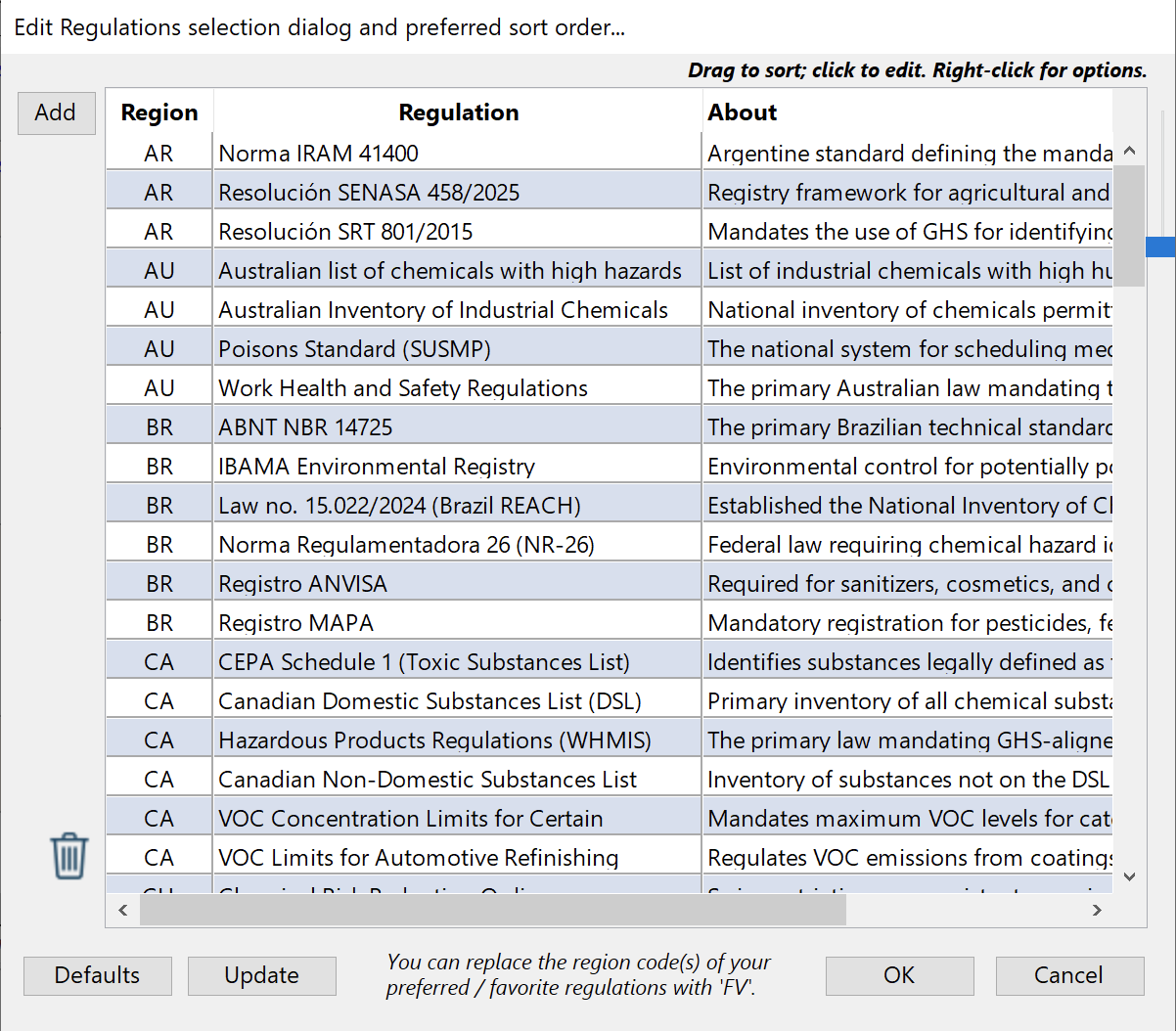
Dialog for customizing the listed items and sort order of the Regulations selection dialog (shown immediately above), accessed by clicking on the Customize button in that dialog. Here, the “Defaults” button can restore a previous set of regulations that you may have created, with an earlier version of SDScribe™. It can also replace all existing entries with a fresh “starter” set. The Update button will augment your existing list with the starter set.
Link or un-link regulations with a right-click — Added contextual menu items to the SDS Regulations table, for linking with components (ingredients) in the Component table (Tab “3 Composition”). The program will prompt the user to select the component.
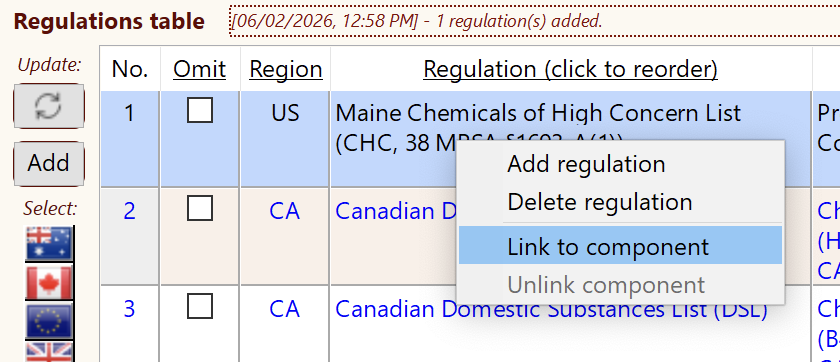
Contextual (right-click) menu for linking an un-linked regulation to a component (Tab “3 Composition”).
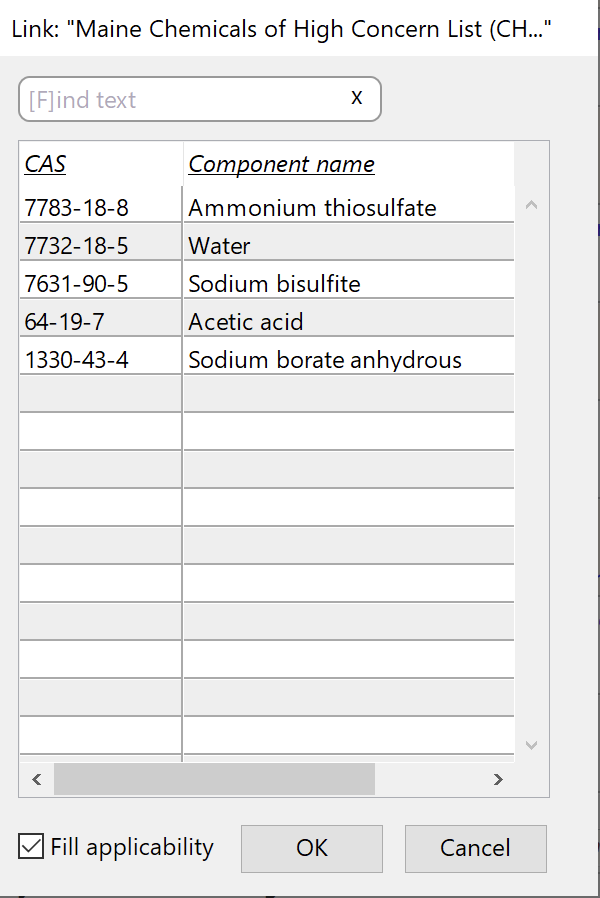
On a “Link to component” request, the program prompts the user to select the component. Checking the “Fill applicabililty” box places the component name and CAS number into the “Applicability” column.
“Omit” header — Clicking on the “Omit” header in the Regulations table (Tab “15.1 Regulatory” of the SDS entry form) now causes the program to display a dialog, “Select regulation(s) to omit or include…”, replacing the previous drop-down menus at that location.
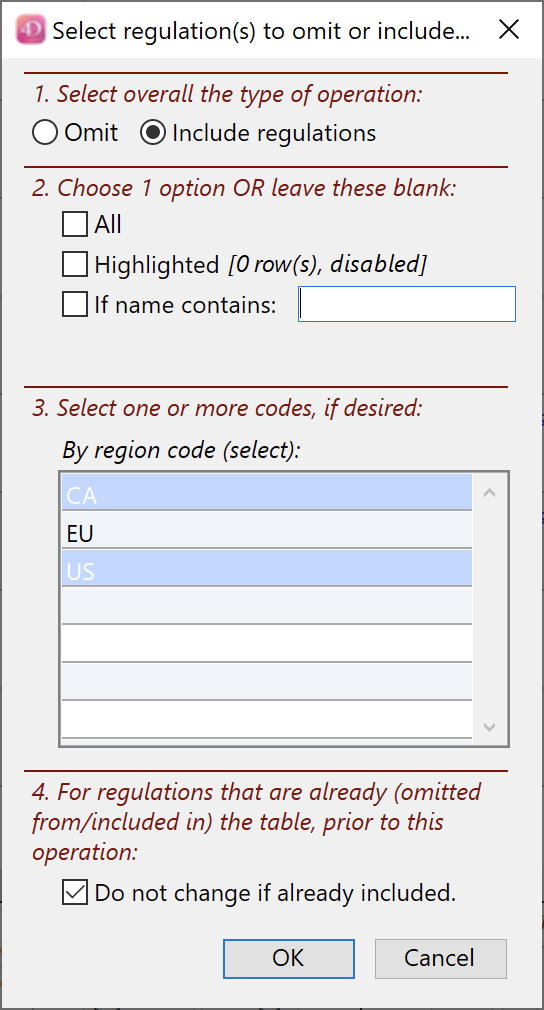
“Select regulation(s) to omit or include…” dialog.
Omit and include (actions) — A one-line text display located just above the Regulations table records user actions relevant to omitting and/or including items in the table (Tab “15.1 Regulatory” of the SDS entry form). The user can also click on an adjacent “zoom” button to review earlier actions.
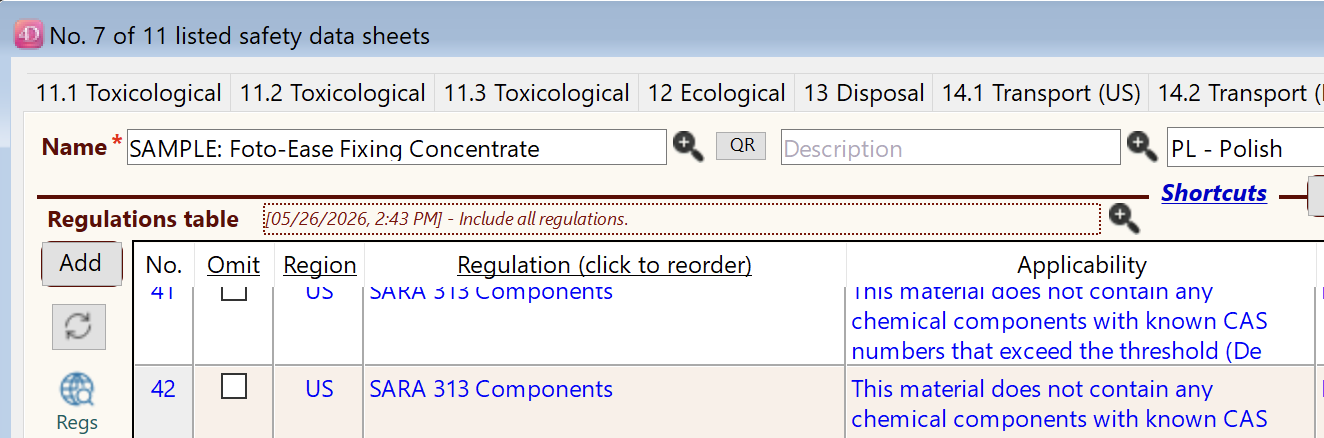
Omit / include information, displayed in burgundy italics, above the Regulations table.
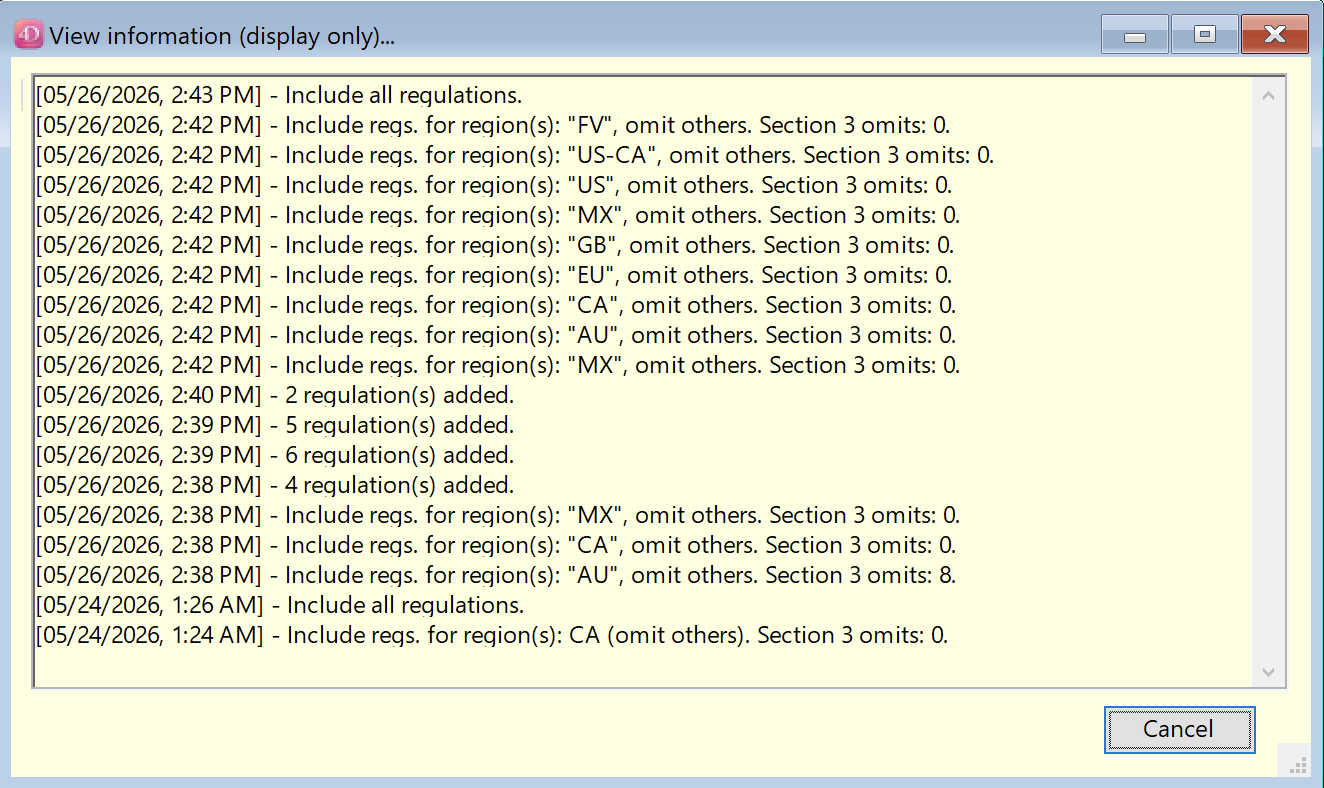
Previous omit/include information, available by clicking on the “zoom” button.
Updates to GHS labels —GHS labels now accommodate right-to-left text (Arabic) and new features, such as the (China) NRCC QR code. Some dual-column labels (with flow from the first column into the second) are single-column when generated in right-to-left languages like Arabic.
A new GHS label format is available in four different sub-types, with font and pictogram scaling based upon product package volume range, to incorporate the updated requirements in Regulation (EU) 2024/2865.
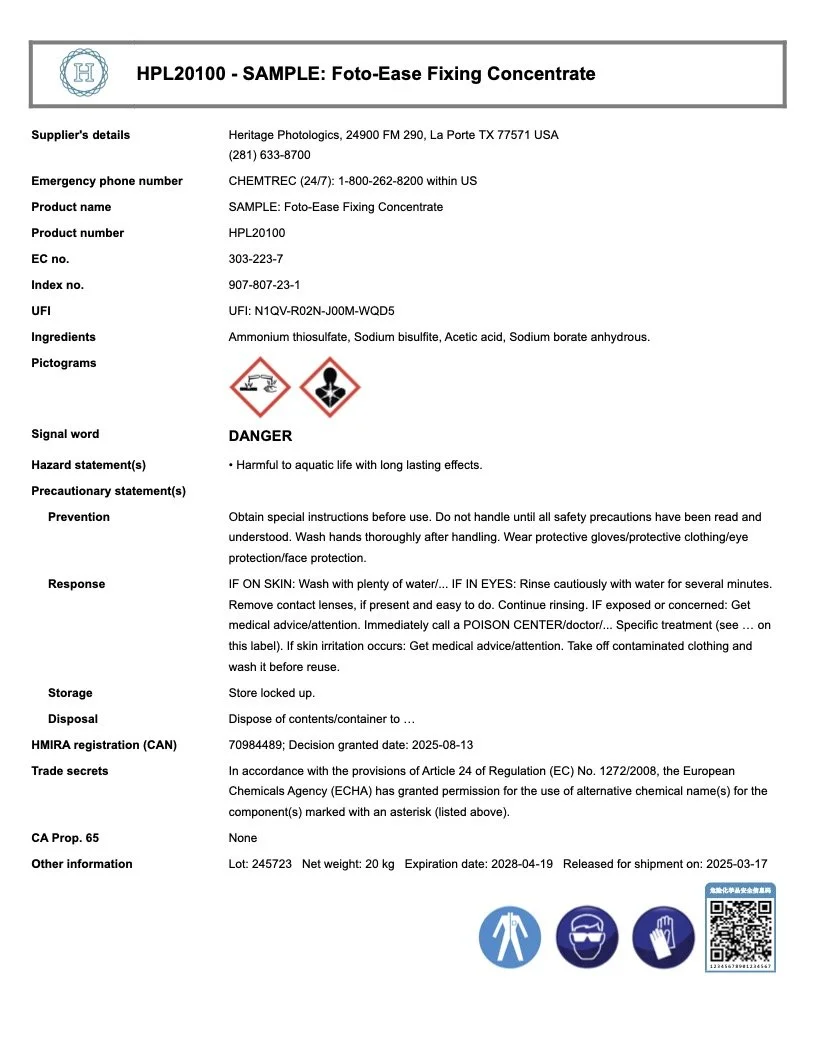
New “EU portrait” GHS label format, available in four different sizes based upon product package volume (0-0.5L, 0.5-3L, 3-50L, 50-500L).
Action items (SDS entry, validation dialog) — Added detection of incomplete hazard and precautionary statements (containing ellipses, slashes, and/or brackets).
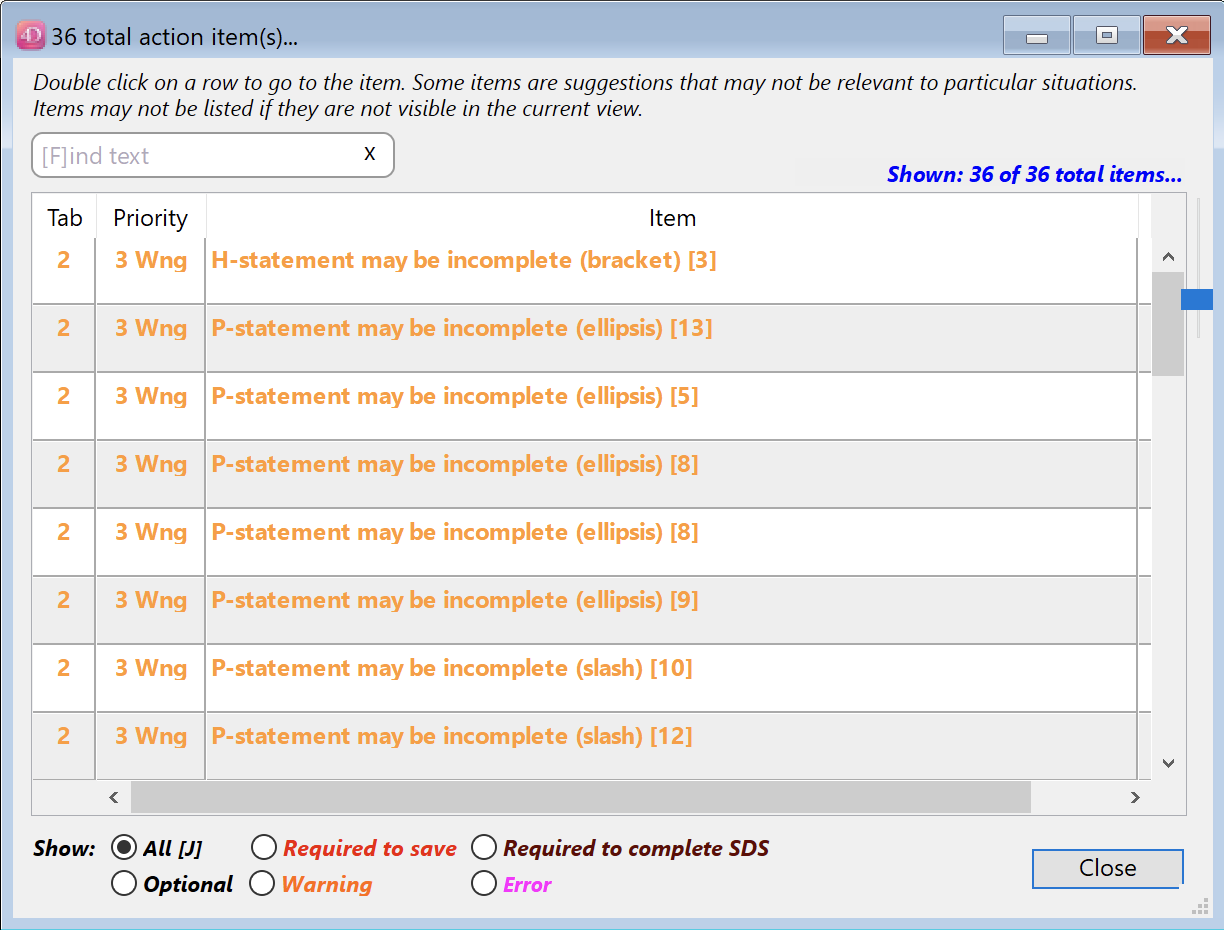
Action items dialog, showing new warning items for incomplete GHS hazard (H-) and or precautionary (P-) statements.
Imports
Created a “generic” translated phrase import, for adding H- and P-statements to the Phrase translations section of the program.
Updated the Polish Custom Translation Group (CTG).